

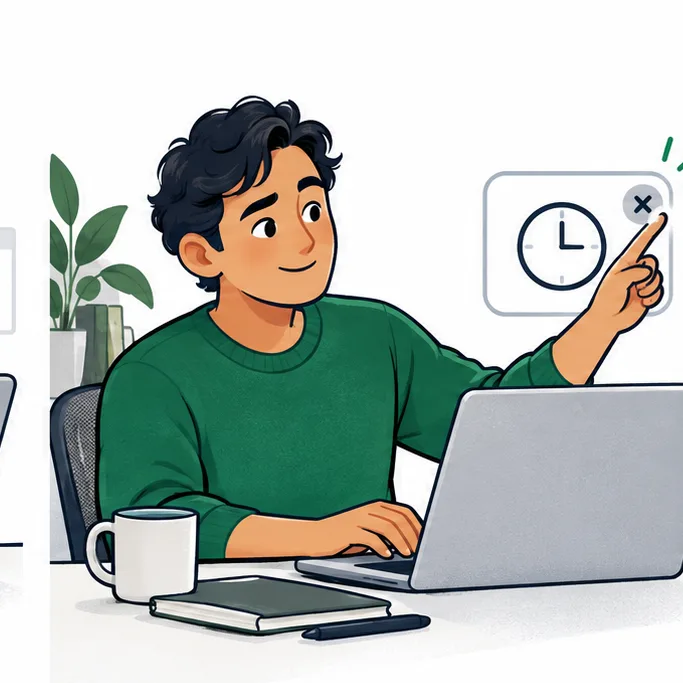
Keep skipping break reminders? Check what happens when one appears. A timer tells you when to stop. Strict mode makes a break harder to close. A verified break can pause when you look back. These help with different habits. A harder-to-close popup still cannot stop you from picking up your phone.
We use Have You Rested? for the examples because we make it. Free has a timer. Pro can use the camera to check a break. You can skip in both plans. Start with a routine you can follow. Software can prompt you, but you still choose whether to take the break.
Notice which part you keep skipping
Do you close the alert before you stop? Put it off until the next meeting? Or let the timer run while you keep reading? You might also leave the desk on your own, then get a reminder after coming back. Note which of these happens. Changing the time between reminders won't fix all of them.
For your next few reminders, make a brief note after each one: taken, postponed, skipped, or spent on another screen. A paper note is enough. You don't need to add tracking software or connect a personal account. The useful detail is why you chose that action: a call, an unfinished sentence, or a reflex to reach for the phone.
If every reminder arrives during a call, adjust when reminders can interrupt you before making them harder to dismiss. If you take the break but watch the countdown, pick something away from your displays to look at. If the Skip button gets clicked before you read the alert, try a reminder that is harder to close.
When an ordinary timer is enough
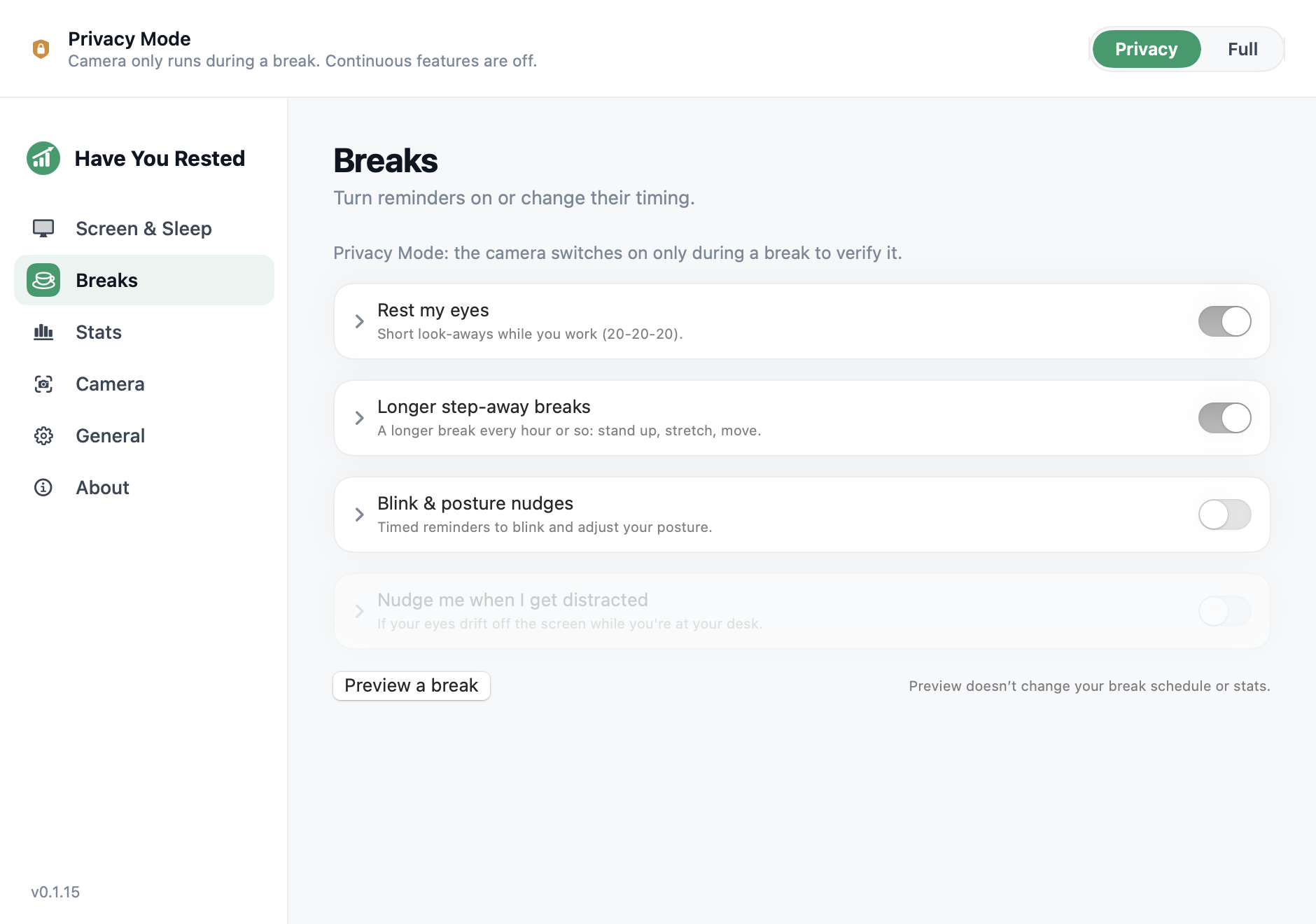
A timer works well when the main problem is forgetting. It measures time and prompts an action. In Have You Rested? Free, the eye-break schedule is 20 seconds every 20 minutes. The app also offers blink and posture nudges. The Mac setup guide shows where to begin.
Don't judge a timer by the number of completed countdowns alone. The timer cannot tell whether you spent those seconds reading a second monitor. If you choose camera-free timing, you supply that part of the routine: stop reading, put down the phone, and look away from nearby displays.
We'd start with a timer if you haven't tried one before. See which reminders you take and which you close. Then decide whether a stronger prompt would help. If every break feels like another task to clear, you may end up turning the app off.
The app's Preview a break control lets you see the overlay without changing your real schedule or statistics. Preview uses a timer even in Pro. It is a way to check the presentation, not a test of camera verification or a record of a completed break.
What strict mode can and can't change
Strict mode usually makes a break harder to close or put off. Each app has its own settings. Stretchly documents strict-mode settings for its short and long breaks in its official preferences guide. Check the current settings rather than assuming every app uses the phrase the same way.
Even a hard-to-close reminder cannot tell what you do during the break. You could read a phone beside it or use another display. Unless the app has another way to check, it just counts time.
Have You Rested? does not lock you into a break. You can skip or postpone, even with Pro. If you want an app that makes breaks harder to close, check the strict settings in other tools. Buying Pro will not remove the Skip button.
Before enabling stricter controls elsewhere, check how you can pause reminders during a call or time-sensitive task. Try the setting in a work session where an interruption is manageable. If you keep disabling the app entirely to escape the restrictions, reconsider the timing or the type of reminder.
What the camera can check
Pro can use the camera to check whether you look away during an eye break. If looking at the Mac is detected, the countdown pauses. Looking away or leaving the camera's view can let it run. Detected looking down also pauses it. Being off the Mac's screen does not always count as break time.
The app estimates where you look from the position of your head and eyes. It does not recognize a phone in your hands. If looking down is detected, the app can show “Look into the distance, not at your phone.” A glance it misses may still count. Camera position, lighting and calibration affect the estimate.
A camera check does not measure rest. The app cannot tell exactly how far away you focus or spot every other display. It cannot diagnose tired eyes or prove a health benefit. You still choose what to do during those seconds.
A longer Pro break needs the camera to report that you are away. Looking to the side while staying at the desk is not the same thing. If there is no useful camera signal, either kind of break uses a timer instead. Free and preview breaks always count time.
Choose when the camera can run. Free needs no camera. Pro Privacy Mode keeps it off during work, but can use it to check a break. Full Mode uses it between breaks too. For no camera use at all, including during the trial, leave macOS camera permission disabled. The camera-free guide explains that choice.
A small experiment for your next work session
- Keep one reminder app active. Pause competing schedules so you can tell which prompt you respond to.
- Pick a destination for your attention before the first alert: something away from your displays. Put the phone somewhere you won't reach for it automatically.
- When a reminder arrives, take it or use postpone for a specific reason. Make a quick note of that reason after you finish the current task.
- At the end of the session, separate missed prompts from breaks spent on another screen. Change the part that failed, rather than increasing every restriction at once.
If a timer helps you remember, keep it. If you close each prompt without thinking, compare settings that make breaks harder to skip. If you take a break but keep looking back, try a real Pro break with a camera check. Preview cannot test the look-back pause.
Have You Rested? runs on Apple silicon Macs with macOS 13 or later. A new install includes five days of Pro without a card, starting at the first successful online launch. Pro adds custom timing and optional verification; the free 20-20-20 timer continues afterwards. The pricing section lists US$29.99 lifetime for two Macs, US$19.99 yearly and US$2.99 monthly.
No camera video is recorded or uploaded, and there is no analytics in the Mac app. Licensing and optional updates use the internet; website analytics are separate. That privacy choice should remain yours even if you decide a timer is too easy to ignore.
Questions about reminders you dismiss
Should I pay for verification if I keep clicking Skip?
Only if you want feedback during a break you choose to take. Have You Rested? Pro does not prevent skipping. If you need breaks that are harder to close, check the strict settings in another app.
Does looking at my phone count as a verified eye break?
Detected downward gaze pauses the Pro eye-break countdown. The app doesn't recognize phones or measure viewing distance, and detection can miss a glance. A plain timer can't check what you're looking at.
Can I test the look-back pause using Preview a break?
No. Preview always uses a timer and leaves the real schedule and statistics alone. Verification needs a real Pro break with a usable camera signal.
Can I keep using reminders after the trial without camera access?
Yes. Free includes the camera-free 20-20-20 timer and blink and posture nudges. The five-day Pro trial does not require a card. Leave macOS camera permission disabled if you want to avoid camera use during the trial too.
Start with a schedule you can follow. You can download the free Mac timer and decide whether a camera check helps with the problem you saw.