
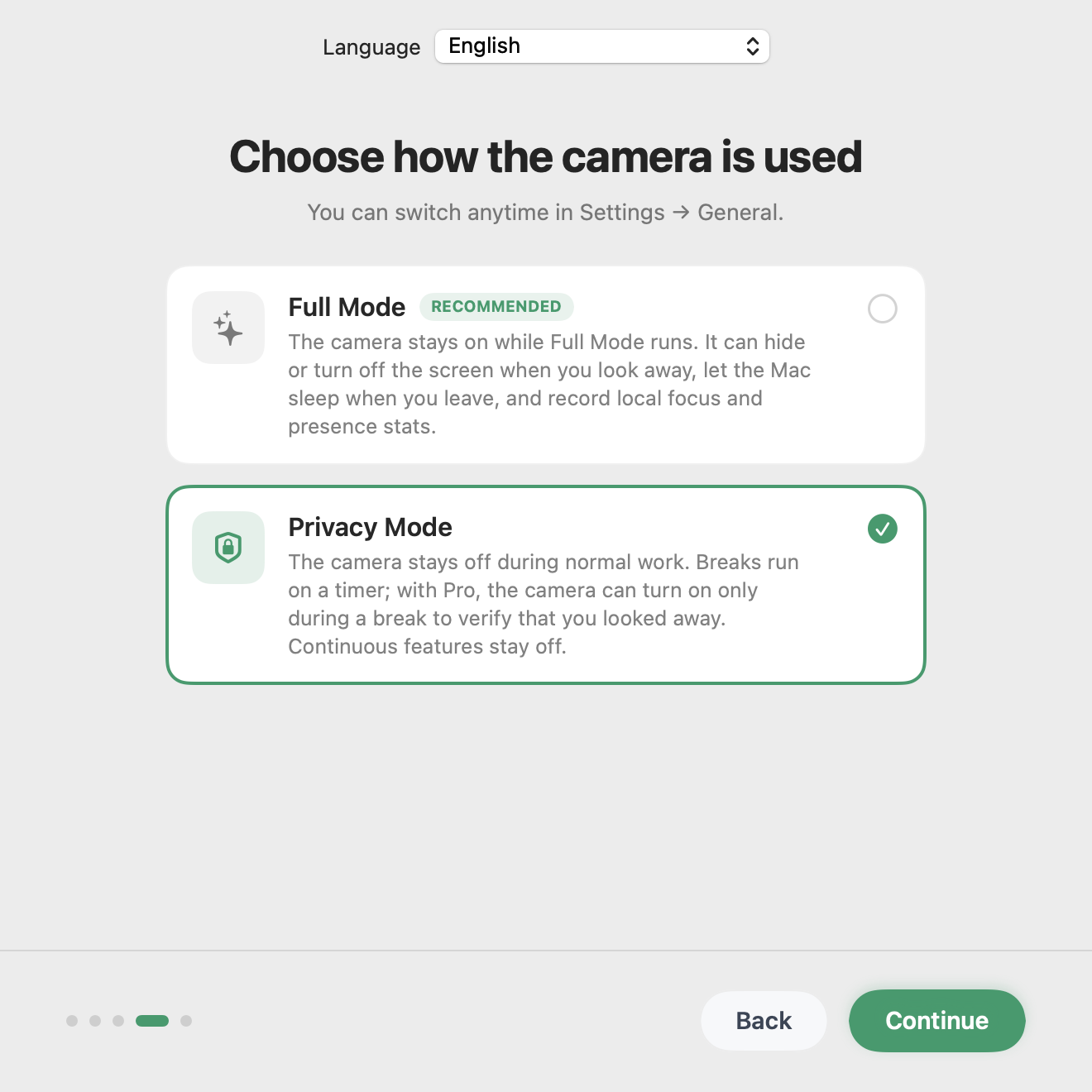
You can use a Mac break reminder without a camera. A timer only needs to count time and show a reminder; it doesn't need to see your face. In Have You Rested?, the free timer supports camera-free breaks. Choose Privacy Mode and leave the app's camera permission off if you want no camera use at all, including during a Pro trial.
The choice gets confusing when an app offers both timed and camera-verified breaks. They can display the same countdown while doing different things underneath. Before granting access, decide whether you want a reminder to stop working or a check that you actually looked away.
Start with the kind of reminder you need
Our recommendation is to start with the plain timer. If a prompt is enough to make you put down the mouse and look across the room, camera verification adds a permission you don't need. You can make that decision again later if you keep dismissing breaks or returning to the screen before the countdown finishes.
A timer measures elapsed time. It can't tell whether you're reading a second monitor, checking a phone or already making tea. That limitation matters, but it isn't a fault: it's the trade-off you choose when the camera stays off. Don't read a completed timer as evidence that your eyes spent the whole break looking into the distance.
A camera-verified break uses a different signal. Have You Rested? Pro can pause its break countdown when you look back at the screen or down at your phone. It still can't diagnose eye fatigue, measure where your eyes are focused in metres, or certify that a break helped your health. Verification is an aid to following the routine.
Set up breaks with camera access disabled
You need an Apple silicon Mac running macOS 13 or later. This app doesn't support Intel Macs, Windows, Linux, iPhone or Android. On a work-managed Mac, use your organisation's normal process for installing apps; changing camera permission won't override an installation restriction.
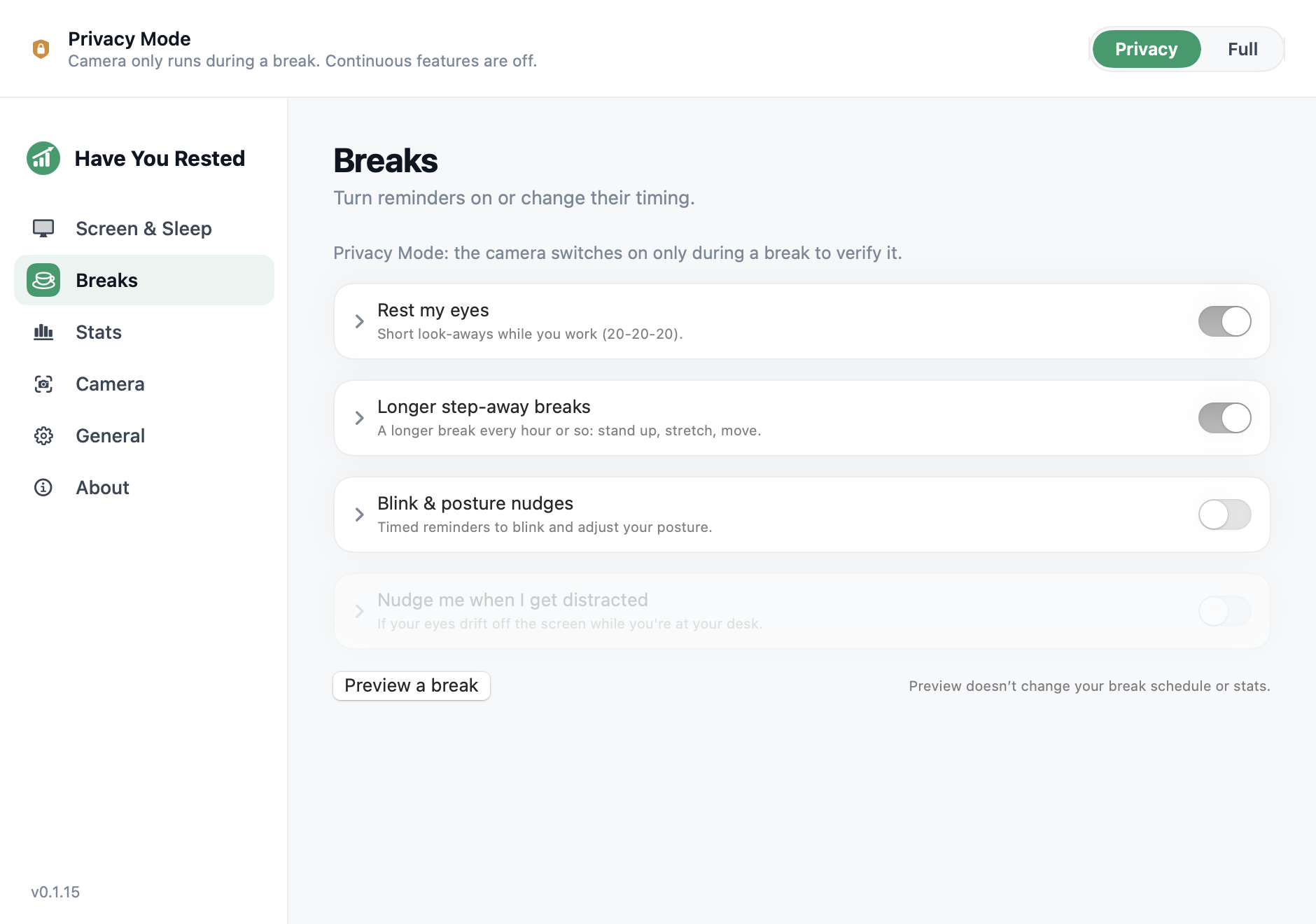
- Open Have You Rested? and choose Privacy Mode. Leave eye-break reminders enabled.
- Decline camera access if prompted. If you previously allowed it, open System Settings → Privacy & Security → Camera and turn off access for Have You Rested?.
- Keep the standard 20-minute work interval and 20-second eye break to begin with. The app gives a 15-second warning before a break.
- When the reminder appears, look away from your displays and put your phone down. Let the timer finish without treating it as another screen to watch.
- Try this during an ordinary stretch of work before relying on it for a busy day. Check that the app is enabled and that you haven't left a temporary pause running.
Apple documents the permission control in its guide to camera access on Mac. For the rest of the app's installation and reminder settings, use our Mac eye-break setup guide.
One detail is easy to miss during the five-day Pro trial: Privacy Mode means no continuous monitoring, but Pro can request the camera to verify an individual break. Leaving the operating-system permission off makes the no-camera choice explicit. Free timed breaks don't require that permission, and a camera-dependent Pro feature can't operate without it.
If the green camera light is still on
Look at which app is using the camera before changing more settings. A video call or another camera app can keep it active even when your break reminder has no access. A mode switch in one app doesn't turn off camera use by every other app on the Mac.
Apple's camera guide explains the green indicator. It indicates camera use; it doesn't tell you whether the software saves recordings or sends frames elsewhere. Those are separate questions for the software's privacy documentation.
Covering the lens is also different from denying permission. A cover prevents a useful image, but the camera may still be active. If your requirement is that this app must not use the camera, use the permission control. That gives you a clear setting you can check again after changing modes or trying a feature.
What “on-device” does and doesn't tell you
When its camera features are enabled, Have You Rested? processes frames with Apple Vision on the Mac at roughly one to two frames per second. Frames are discarded after processing; video isn't stored. The app uses the resulting presence state to decide whether you're looking, present but turned away, or absent.
That describes processing when the camera is on. It isn't a claim that the camera never turns on. If you want a camera-free routine, the plain timer remains the simpler choice, regardless of where a camera-enabled feature would process its data.
The Mac app has no analytics and doesn't require an account. Licensing and optional update checks are separate network activity; “on-device camera processing” shouldn't be read as “the app never contacts a server.” The website also has its own analytics. Our privacy section explains the distinction and links to the full policy.
For any break app, look for concrete answers: when does capture start, what remains after a frame is processed, and does anything leave the device? A broad privacy slogan won't answer all three. Nor does a permission dialog tell you how long an app will retain data after you allow access.
What you can do without verification
The free version includes timed eye breaks, the pre-break warning, longer breaks, and blink and posture nudges. Those nudges are reminders, not measurements of your blinking or posture. You don't need a camera to receive a prompt to move, blink or look away.
The American Optometric Association describes the 20-20-20 routine: every 20 minutes, look about 20 feet, or six metres, away for 20 seconds. Choose somewhere to look before the first reminder. A distant object across a room or outside a window is more useful for this routine than finding another small screen.
There's a dead end worth avoiding: turning every reminder into a phone break. The timer will happily finish because it can't see the phone. You have to supply that part of the routine yourself. Likewise, moving a document to the second monitor doesn't make the timer's completed state proof of rest.
Keep the setup manageable. If the warning arrives halfway through a line of code, use it to reach a stopping point. A longer break can be time to stand up and move away from the desk. The app supports those habits; it doesn't diagnose or treat an eye condition. Persistent discomfort deserves advice from an eye-care professional.
When camera verification is worth considering
If you routinely click a reminder away and continue working, a timer may be too easy to ignore. That's the case where we'd consider Pro's verified breaks. Full Mode also enables presence-based display control and statistics. Those features need a camera signal, so they aren't part of the camera-free setup described here.
Pro is optional: US$29.99 lifetime for two Macs, US$2.99 monthly or US$19.99 yearly, with a five-day trial and no card required to try it. Check the current plans before purchasing. Paying for Pro doesn't create a reason to enable a feature you don't want.
Questions before you allow camera access
Does a break reminder need a webcam?
No. A timed reminder can run without one. Camera access is needed for features that check presence or whether you looked away, not for counting down a scheduled break.
Can I use Have You Rested? with camera permission denied?
Yes. Choose the camera-free timer setup above. Timed breaks remain available; camera verification and presence-based controls need permission to work.
Does the camera light mean a video is being saved?
It means the camera is active. Whether an app records or uploads video is a separate matter. Have You Rested? discards processed frames and doesn't store video.
Will the timer know that I'm looking at my phone?
The plain timer won't. Pro's camera verification can pause a break when it detects you looking down at your phone. Neither mode measures viewing distance or diagnoses eye strain.