
You finish a paragraph on the main display, turn to the laptop for a message, and call that a pause. With two screens, the task changes more readily than the viewing distance. For useful dual monitor breaks, stop reading both displays, choose somewhere beyond the desk to look, and make sure the reminder is visible in your normal workspace. Start with one timer. A separate countdown for each monitor adds decisions without helping you leave either one.
This guide is for a Mac desk with a laptop and external display, or two desktop monitors. It covers the handover from working to taking a break, including a short check for reminders that appear somewhere unexpected. It isn't a monitor-buying guide or a claim that two displays require a medically prescribed break schedule.
Set up the desk around the screen you actually use
Put the document, editor or spreadsheet you spend most time in on the display in front of you. Keep the other screen for occasional reference. If you use both equally, arrange them together around your central working position. The Canadian Centre for Occupational Health and Safety's monitor guidance makes this distinction between a primary display and equally used displays.
Try the layout with your real task. A symmetrical desk photograph isn't evidence that the arrangement suits a day spent looking left at a small terminal window. Move that window first. If you enlarge text, check both screens: a comfortable editor on the external monitor doesn't fix tiny messages on the laptop beside it.
We recommend keeping chat off the screen you face most often when it isn't needed for the task. The exception is a role where incoming messages are the work, such as live support. Give the main working area to the thing you actually need to read, rather than assigning apps permanently by habit.
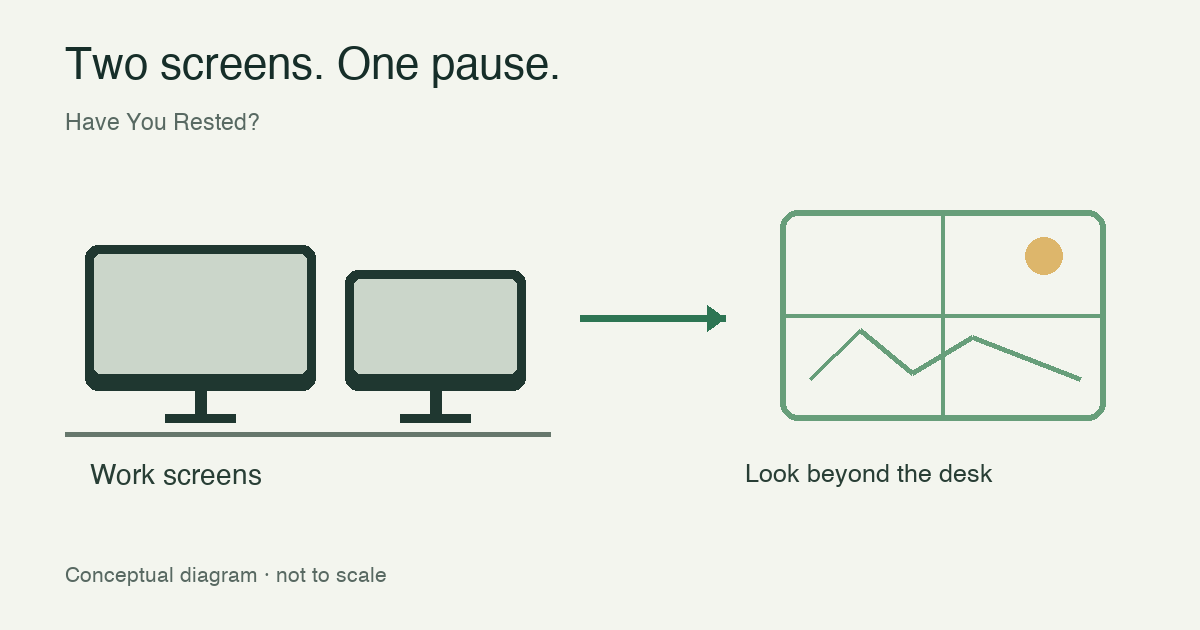
What counts as leaving both screens?
Reading mail on the second display is still screen work. So is checking the phone while a break overlay covers your editor. A useful instruction is specific: stop reading, rest your hands, and look toward the target you chose before starting work. You don't need to watch the countdown for the whole pause.
A window with a view can make that instruction easier. If the room has no distant view, use the available space to step away from the desk when practical. Don't invent a distant target by putting a landscape photograph on the other monitor; the photograph remains at the monitor's physical distance.
Short visual pauses also don't replace time away from the workstation. The HSE's work-routine guidance recommends changes of activity or breaks that allow movement and a change of posture. Choose an activity that fits the job: get water, walk to speak with a colleague, or leave the desk briefly. This is practical organisation, not a promise to treat symptoms.
A routine you can test during one work block
- Choose your main working display and open the task you intend to do.
- Put the phone aside and choose a viewing target beyond both screens.
- Enable one reminder and check its preview before you start.
- At the prompt, save your place with a short note if needed, then stop reading both displays.
- Return to the same task after the pause; take longer opportunities to move away from the desk too.
- After the work block, note the one thing that made a pause difficult and adjust it.
For a developer, the note might be “next: inspect the failing assertion.” For a spreadsheet, it might be a selected row or a brief comment. The purpose is to make returning straightforward. Writing a detailed progress report at every reminder would turn the pause into another task.
Don't make “when the build finishes” your only cue if the build can run for an hour. A natural stopping point can help, but it can also keep moving. Use the warning before a scheduled break to choose a safe point to stop. If the current activity requires uninterrupted attention, take the pause when the activity permits it; don't accumulate missed pauses as a penalty.
Check the reminder with your actual Mac layout
Before relying on a reminder, open its preview while the apps you normally use are in place. Test on the external display, then on the laptop. If you work in full screen or switch Spaces, repeat the check there. A preview on an empty desktop tells you little about a busy workspace where the reminder is hard to find.
Apple documents display arrangement under System Settings → Displays. Arrange the displays to match their physical positions. That helps you understand where windows and the pointer move; it doesn't guarantee that an app follows your gaze or sends its countdown to a particular screen.
If the countdown appears out of sight, first check where the pointer was when the break started, which display was active, and whether the app was full screen. Record the app version and whether the problem happened after connecting a dock or waking the Mac. Change one condition and try again. Restarting everything at once may hide the problem without identifying it.
Keep display sleep separate from this check. Turning a display off doesn't, by itself, prove that the Mac slept or that your session locked. You can take a visual pause with both screens on. Use the normal lock procedure when leaving a shared workspace.
Using Have You Rested? at a two-screen desk
The website/DMG edition of Have You Rested? runs on Apple silicon Macs with macOS 13 or later. Its Free plan includes timed eye breaks, longer breaks and blink/posture nudges. The short routine uses a 20-minute interval, a 15-second warning and a 20-second pause. The Mac eye-break setup guide explains how to get started.
Start with the Free timer if you only need a cue. Pro adds custom timing and camera-assisted break verification. Neither a completed timer nor a camera estimate proves what you looked at: the app cannot certify that you stopped reading another display or measure the distance to a viewing target. A head turned toward the second monitor can look like looking away from the camera.
For a setup that uses no camera, follow the camera-free instructions. Privacy Mode avoids continuous monitoring, but Pro can still use the camera for an individual verified break when permission is allowed. Explicitly denying camera permission in macOS makes the no-camera choice clear. Check the current feature overview before choosing a paid feature.
Review the habit, not just the completed countdowns
At the end of a session, ask what actually happened when the reminder arrived. Did you look away from both displays? Did you switch to the phone? Was the prompt hidden in another Space? These observations tell you what to change next. A high number of completed timers alone doesn't answer any of them.
If the obstacle was returning to the task, improve the short note. If it was visibility, test the workspace. If calls occupied the entire block, plan an opportunity between them. Avoid changing the timing, desk arrangement and notification settings together; otherwise you won't know which change helped.
Two monitors don't establish a diagnosis or a universal break interval. If discomfort persists despite practical changes, seek advice from an appropriate health professional. This routine is a way to organise a desk and a pause, not a test of eye health or a substitute for an assessment.
Questions about breaks with two monitors
Does switching to the second monitor count as a break?
Not if you continue reading or working on it. For a visual pause, leave both close screens alone and look beyond the desk.
Do I need one timer per monitor?
Usually one reminder is simpler. Test that you can see it in the layout you use, rather than running competing schedules for each screen.
Can a camera confirm that I am not looking at another screen?
A camera-assisted gaze or presence estimate cannot reliably establish what object you are viewing or its distance. Treat verification as assistance, not proof.
Must I turn both monitors off?
No. You can stop reading with the displays still on. Display power, computer sleep and session locking are separate settings with different purposes.
To try the routine, download Have You Rested? and test the Free reminder in your usual workspace before changing anything else.